
README.md 4.9 KB
#Minitel library for Arduino
This library provides a way to create screens for the Minitel without having to dig into the complexity of the system.
##Schematic A DIN 45º plug is required to plug the Arduino to the Minitel
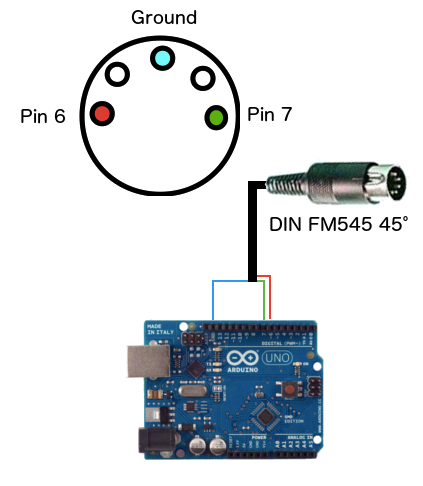
##External libraries This library is using SoftwareSerial, please install it prior to compiling any Minitel sketch.
##Constructor
Default constructor, using Arduino PINs 6 and 7 for TX/RX
#include <SoftwareSerial.h>
#include <Minitel.h>
Minitel minitel;

void setup() {
}
...
Custom constructor using other Arduino PINs for TX/RX
#include <SoftwareSerial.h>
#include <Minitel.h>
Minitel minitel(10, 11);

void setup() {
}
...
##Graphic and Text modes
Here is how you can switch between text and graphic mode
minitel.graphicMode();
minitel.textMode();
Cursor positionning
Moving the cursor to a certain position
Move the cursor to a certain location
minitel.moveCursorTo(HOME);
Other possible positions are :
Cursor related
- HOME : beginning of the current line
- LINE_END : end of the current line
Screen related
- TOP_LEFT : top left of the screen
- TOP_RIGHT : top right of the screen
- BOTTOM_LEFT : bottom left of the screen
- BOTTOM_RIGHT : bottom right of the screen
- CENTER : center of the screen
Moving the cursor to an XY position
Move the cursor to a given positioni (x,y), anywhere in the screen x has a max of 40 y has a max of 24
minitel.moveCursorTo(10, 2);
Moving the cursor in a certain direction
Move the cursor based on its current position You can specify how many times you the cursor should be moved this direction
minitel.moveCursor(UP);
minitel.moveCursor(RIGHT, 10);
Available directions :
- LEFT
- RIGHT
- DOWN
- UP
Show/hide the cursor
You can show (white square) or hide the cursor
minitel.cursor();
minitel.noCursor();
Clear the screen
Clear all characters and move the cursor to the top-left of the screen
minitel.clearScreen();
Sound
You can trigger a bip by calling this function with a duration (in milliseconds)
minitel.bip(1000);
Colors
You can change the text or graphics color and background color
minitel.bgColor(WHITE);
minitel.textColor(BLUE);
Available colors are (grayscale on most Minitels)
- BLACK
- RED
- GREEN
- YELLOW
- MAGENTA
- BLUE
- CYAN
- WHITE
You can reset colors to their default values (white characters, black background) using
minitel.useDefaultColors();
Display text
Single characters
Write a single char at the cursor position or at a given position (x,y) Return boolean (true/false) depending if the character is supported on Minitels
minitel.textChar('c');
minitel.textChar('z', 1, 1);
Special characters
The Minitel's special characters can be typed by using the corresponding constants
minitel.specialChar(SPE_CHAR_CIRCLE);
minitel.specialChar(SPE_CHAR_CIRCLE, 2, 10);
Available special characters are :
- SPE_CHAR_BOOK
- SPE_CHAR_PARAGRAPH
- SPE_CHAR_ARROW_LEFT
- SPE_CHAR_ARROW_UP
- SPE_CHAR_ARROW_RIGHT
- SPE_CHAR_ARROW_DOWN
- SPE_CHAR_CIRCLE
- SPE_CHAR_MINUS_PLUS
- SPE_CHAR_1_4
- SPE_CHAR_1_2
- SPE_CHAR_3_4
- SPE_CHAR_UPPER_OE
- SPE_CHAR_LOWER_OE
- SPE_CHAR_BETA
Text
Write a text at the cursor position or at the given position (x,y)
Text orientation can be horizontal (default) or vertical
minitel.text("Hello France");
minitel.text("Hello France", 2, 10);
minitel.text("Hello France", VERTICAL);
minitel.text("Hello France", 1, 1, VERTICAL);
Orientation can be set using
- HORIZONTAL
- VERTICAL
Text size
Text size can be set using
minitel.charSize(SIZE_DOUBLE);
Other options are
- SIZE_NORMAL
- SIZE_DOUBLE_HEIGHT
- SIZE_DOUBLE_WIDTH
- SIZE_DOUBLE
Graphic characters
When in graphic Mode, the Minitel can display graphic characters.
You can display a graphic char at the cursor position or at a given position as follow:
minitel.graphic("010101");
minitel.graphic("100110", 10, 10);
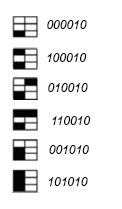
The String content is split from top to bottom, left to right to fill the 2x3 pseudo-pixel grid. The string has to be 6 characters
Graphic characters are 2 columns by 3 rows. Zeros will be filled with the current background color and other values with the current foreground color.
Repeat
One can repeat a single character or graphic several times
minitel.textChar('X');
minitel.repeat(7);
Blink
You can make a text blink like this
minitel.blink();
minitel.text("Blinking text");
minitel.noBlink();
noBlink(); allows to switch back to the default display.
Pixelated effect
You can enable/disable a pixelated effect as follow
minitel.pixelate();
minitel.noPixelate();
Speed considerations
When writing several times the same character consecutively, calling the repeat(); function will allow to display it much faster.