
 01010101
939f633a98
Fake Pong example working on 2 Minitels
01010101
939f633a98
Fake Pong example working on 2 Minitels
|
10 rokov pred | |
|---|---|---|
| examples | 10 rokov pred | |
| images | 10 rokov pred | |
| .gitignore | 13 rokov pred | |
| Minitel.cpp | 12 rokov pred | |
| Minitel.h | 10 rokov pred | |
| README.md | 10 rokov pred |
README.md
#Minitel library for Arduino
This library provides a way to create screens for the Minitel without having to dig into the complexity of the system.
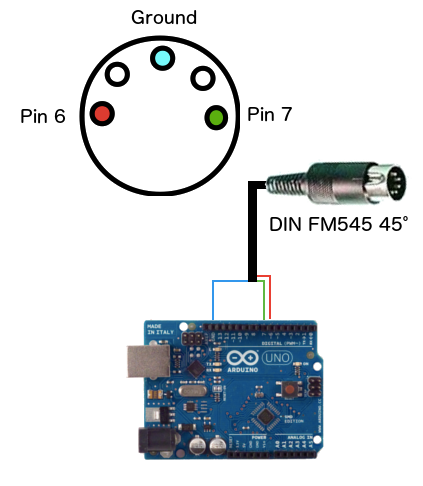
##Schematic
A DIN 45º plug is required to plug the Arduino to the Minitel
##External libraries
This library is using SoftwareSerial, please install it prior to compiling any Minitel sketch.
##Constructor
Default constructor, using Arduino PINs 6 and 7 for TX/RX
#include <SoftwareSerial.h>
#include <Minitel.h>
Minitel minitel;

void setup() {
}
...
Custom constructor using other Arduino PINs for TX/RX
#include <SoftwareSerial.h>
#include <Minitel.h>
Minitel minitel(10, 11);

void setup() {
}
...
##Graphic and Text modes
Here is how you can switch between text and graphic mode
minitel.graphicMode();
minitel.textMode();
Cursor positionning
Moving the cursor to a certain position
Move the cursor to a certain location
minitel.moveCursorTo(HOME);
Other possible positions are :
Cursor related
- HOME : beginning of the current line
- LINE_END : end of the current line
Screen related
- TOP_LEFT : top left of the screen
- TOP_RIGHT : top right of the screen
- BOTTOM_LEFT : bottom left of the screen
- BOTTOM_RIGHT : bottom right of the screen
- CENTER : center of the screen
Moving the cursor to an XY position
Move the cursor to a given position (x,y), anywhere in the screen
x has a max of 40
y has a max of 24
minitel.moveCursorTo(10, 2);
Moving the cursor in a certain direction
Move the cursor based on its current position
You can specify how many times you the cursor should be moved this direction
minitel.moveCursor(UP);
minitel.moveCursor(RIGHT, 10);
Available directions :
- LEFT
- RIGHT
- DOWN
- UP
Show/hide the cursor
You can show (white square) or hide the cursor
minitel.cursor();
minitel.noCursor();
Clear the screen
Clear all characters and move the cursor to the top-left of the screen
minitel.clearScreen();
Sound
You can trigger a bip by calling this function with a duration (in milliseconds)
minitel.bip(1000);
Colors
You can change the text or graphics color and background color
minitel.bgColor(WHITE);
minitel.textColor(BLUE);
Available colors are (grayscale on most Minitels)
- BLACK
- RED
- GREEN
- YELLOW
- MAGENTA
- BLUE
- CYAN
- WHITE
You can reset colors to their default values (white characters, black background) using
minitel.useDefaultColors();
Display text
Single characters
Write a single char at the cursor position or at a given position (x,y)
Return boolean (true/false) depending if the character is supported on Minitels
minitel.textChar('c');
minitel.textChar('z', 1, 1);
Special characters
The Minitel's special characters can be typed by using the corresponding constants
minitel.specialChar(SPE_CHAR_CIRCLE);
minitel.specialChar(SPE_CHAR_CIRCLE, 2, 10);
Available special characters are :
- SPE_CHAR_BOOK
- SPE_CHAR_PARAGRAPH
- SPE_CHAR_ARROW_LEFT
- SPE_CHAR_ARROW_UP
- SPE_CHAR_ARROW_RIGHT
- SPE_CHAR_ARROW_DOWN
- SPE_CHAR_CIRCLE
- SPE_CHAR_MINUS_PLUS
- SPE_CHAR_1_4
- SPE_CHAR_1_2
- SPE_CHAR_3_4
- SPE_CHAR_UPPER_OE
- SPE_CHAR_LOWER_OE
- SPE_CHAR_BETA
Text
Write a text at the cursor position or at the given position (x,y)
Text orientation can be horizontal (default) or vertical
minitel.text("Hello France");
minitel.text("Hello France", 2, 10);
minitel.text("Hello France", VERTICAL);
minitel.text("Hello France", 1, 1, VERTICAL);
Orientation can be set using
- HORIZONTAL
- VERTICAL
Text size
Text size can be set using
minitel.charSize(SIZE_DOUBLE);
Other options are
- SIZE_NORMAL
- SIZE_DOUBLE_HEIGHT
- SIZE_DOUBLE_WIDTH
- SIZE_DOUBLE
Graphic characters
When in graphic Mode, the Minitel can display graphic characters.
You can display a graphic char at the cursor position or at a given position as follow:
minitel.graphic("010101");
minitel.graphic("100110", 10, 10);
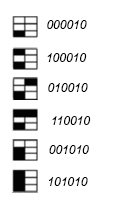
Graphic characters are 2 columns by 3 rows.
The string content is split from top to bottom, left to right to fill the 2x3 pseudo-pixel grid.
The string has to be exactly 6 characters.
Zeros will be filled with the current background color and other values with the current foreground color.
Some examples:
Repeat
One can repeat a single character or graphic several times
minitel.textChar('X');
minitel.repeat(7);
Blink
You can make a text blink like this
minitel.blink();
minitel.text("Blinking text");
minitel.noBlink();
noBlink(); allows to switch back to the default display.
Pixelated effect
You can enable/disable a pixelated effect as follow
minitel.pixelate();
minitel.noPixelate();
Undocumented
Here is a list of undocumented functions:
minitel.incrustation();
minitel.noIncrustation();

minitel.lineMask();
minitel.noLineMask();

minitel.standardVideo();
minitel.invertVideo();
minitel.transparentVideo();
Advanced
Speed considerations
When writing several times the same character consecutively, calling the repeat(); function will allow to display it much faster.
Serial print
If you intend to use the Minitel commands directly (in this case, refer to the device's technical documentation) you can send them directly to the terminal using
minitel.serialprint7(86);
Text
You can get the byte corresponding to a given character by using the following function
byte b = minitel.getCharByte('c');
This byte can then be used to print a character directly by using
minitel.serialprint7(b);